> ## Documentation Index
> Fetch the complete documentation index at: https://nango-wari-integration-config-credentials-api.mintlify.site/llms.txt
> Use this file to discover all available pages before exploring further.
# Google Maps - How do I link my account?
## Overview
To authenticate with Google Maps, you will need:
1. **API Key** - Your Google Maps API key for authentication.
This guide will walk you through generating your **API Key** from the Google Cloud Console.
### Prerequisites:
* You must have a Google account with billing enabled in Google Cloud Platform.
### Instructions:
#### Step 1: Create a Google Cloud Project
1. Log in to the [Google Cloud Console](https://console.cloud.google.com/).
2. Click the project dropdown at the top and select **New Project**.
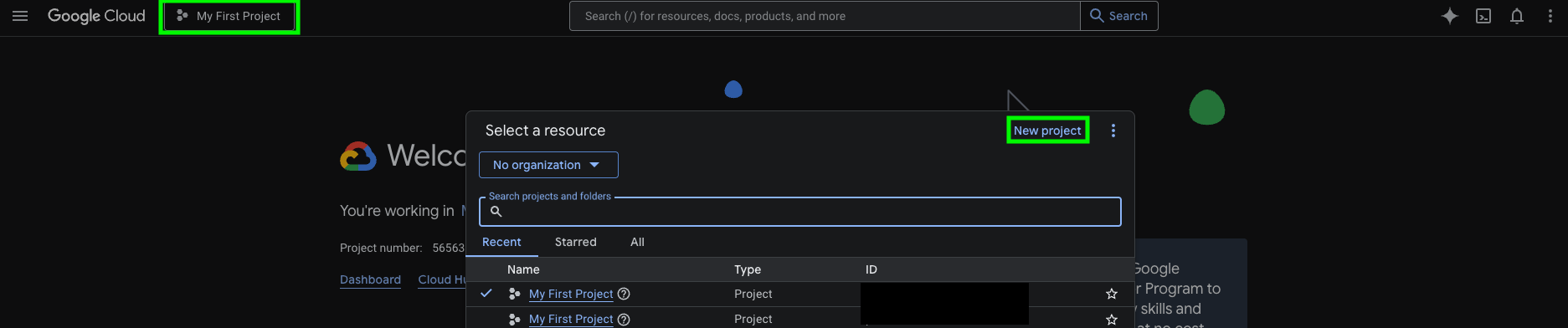 3. Enter a **Project Name**, then click **Create**.
4. Select your new project from the dropdown once it's created.
#### Step 2: Enable the APIs you need
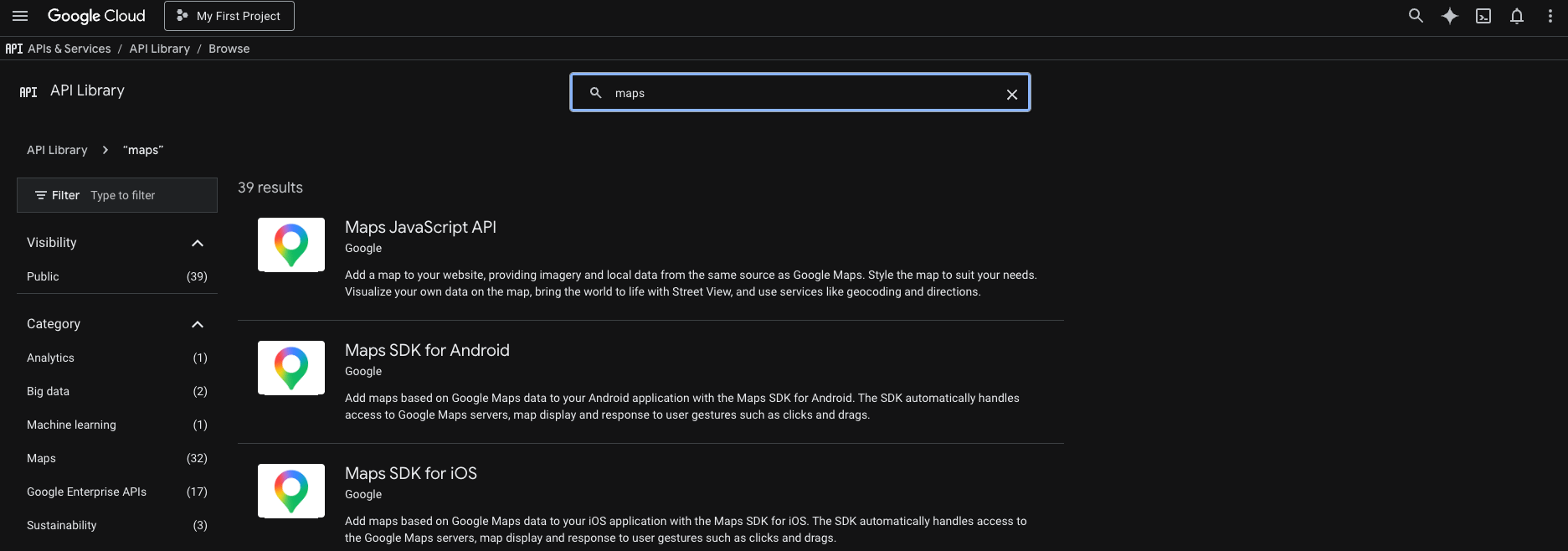
1. Go to [APIs & Services > Library](https://console.cloud.google.com/apis/library).
2. Search for the Google Maps APIs you need (e.g. **Geocoding API**, **Places API**, **Directions API**) and click **Enable** for each.
3. Enter a **Project Name**, then click **Create**.
4. Select your new project from the dropdown once it's created.
#### Step 2: Enable the APIs you need
1. Go to [APIs & Services > Library](https://console.cloud.google.com/apis/library).
2. Search for the Google Maps APIs you need (e.g. **Geocoding API**, **Places API**, **Directions API**) and click **Enable** for each.
 #### Step 3: Obtain your Google Maps API Key
1. In the left sidebar, go to **APIs & Services > Credentials**.
#### Step 3: Obtain your Google Maps API Key
1. In the left sidebar, go to **APIs & Services > Credentials**.
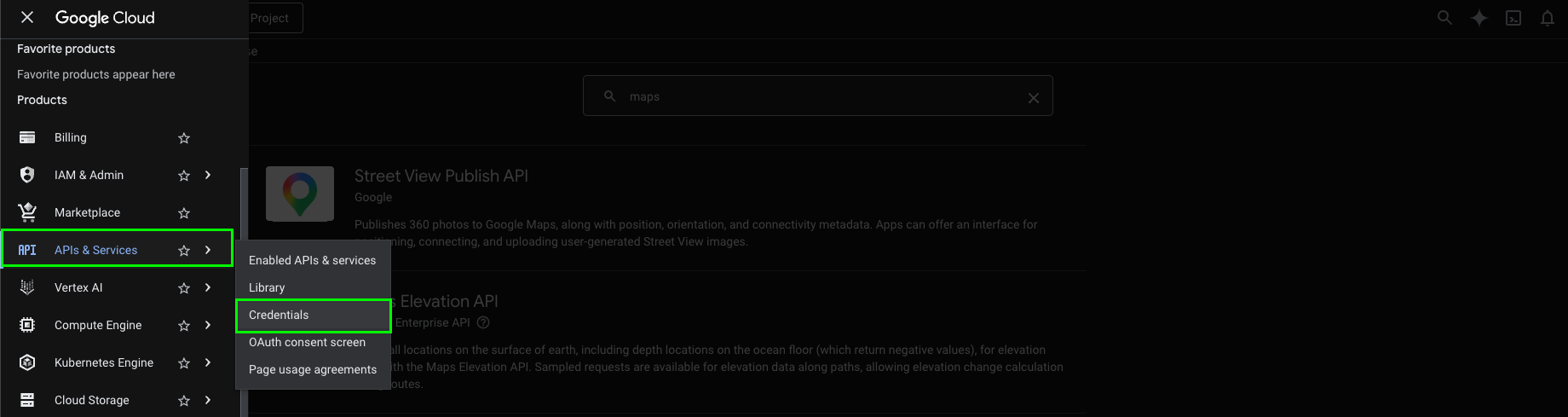 2. Click **+ Create Credentials**, select **API key**, enter a name, and select the APIs you enabled earlier.
 3. Copy the **API key** value shown and store it in a safe place.
It is recommended to restrict your API key to only the APIs you need.
#### Step 4: Enter your API Key in the Connect UI
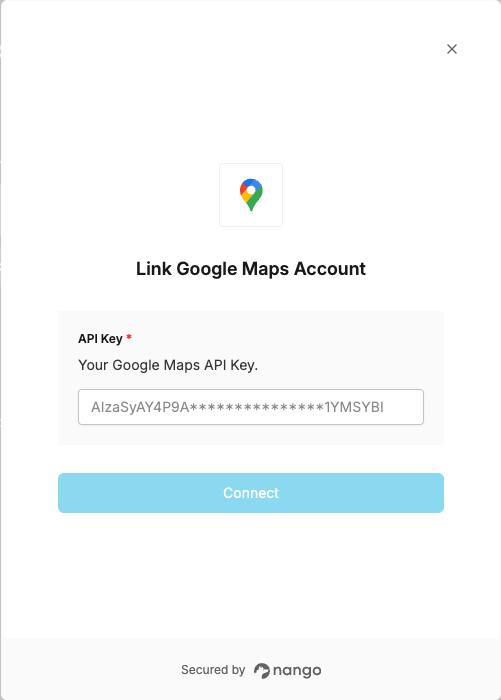
1. Open the form where you need to authenticate with Google Maps.
2. Enter your **API Key** in the field provided.
3. Submit the form to complete authentication.
3. Copy the **API key** value shown and store it in a safe place.
It is recommended to restrict your API key to only the APIs you need.
#### Step 4: Enter your API Key in the Connect UI
1. Open the form where you need to authenticate with Google Maps.
2. Enter your **API Key** in the field provided.
3. Submit the form to complete authentication.
 You are now connected to Google Maps.