> ## Documentation Index
> Fetch the complete documentation index at: https://nango-wari-integration-config-credentials-api.mintlify.site/llms.txt
> Use this file to discover all available pages before exploring further.
# Zoom (Server-to-Server OAuth) - How do I link my account?
## Overview
To authenticate with Zoom using Server-to-Server OAuth, you need the **Account ID**, **Client ID**, and **Client Secret** from a Server-to-Server OAuth app.
This guide walks you through creating the app and finding these values.
### Prerequisites:
* A Zoom account with developer permissions on the [Zoom App Marketplace](https://marketplace.zoom.us/).
### Instructions:
#### Step 1: Creating a Server-to-Server OAuth app
1. Sign in to the [Zoom App Marketplace](https://marketplace.zoom.us/) with an account that has developer permissions.
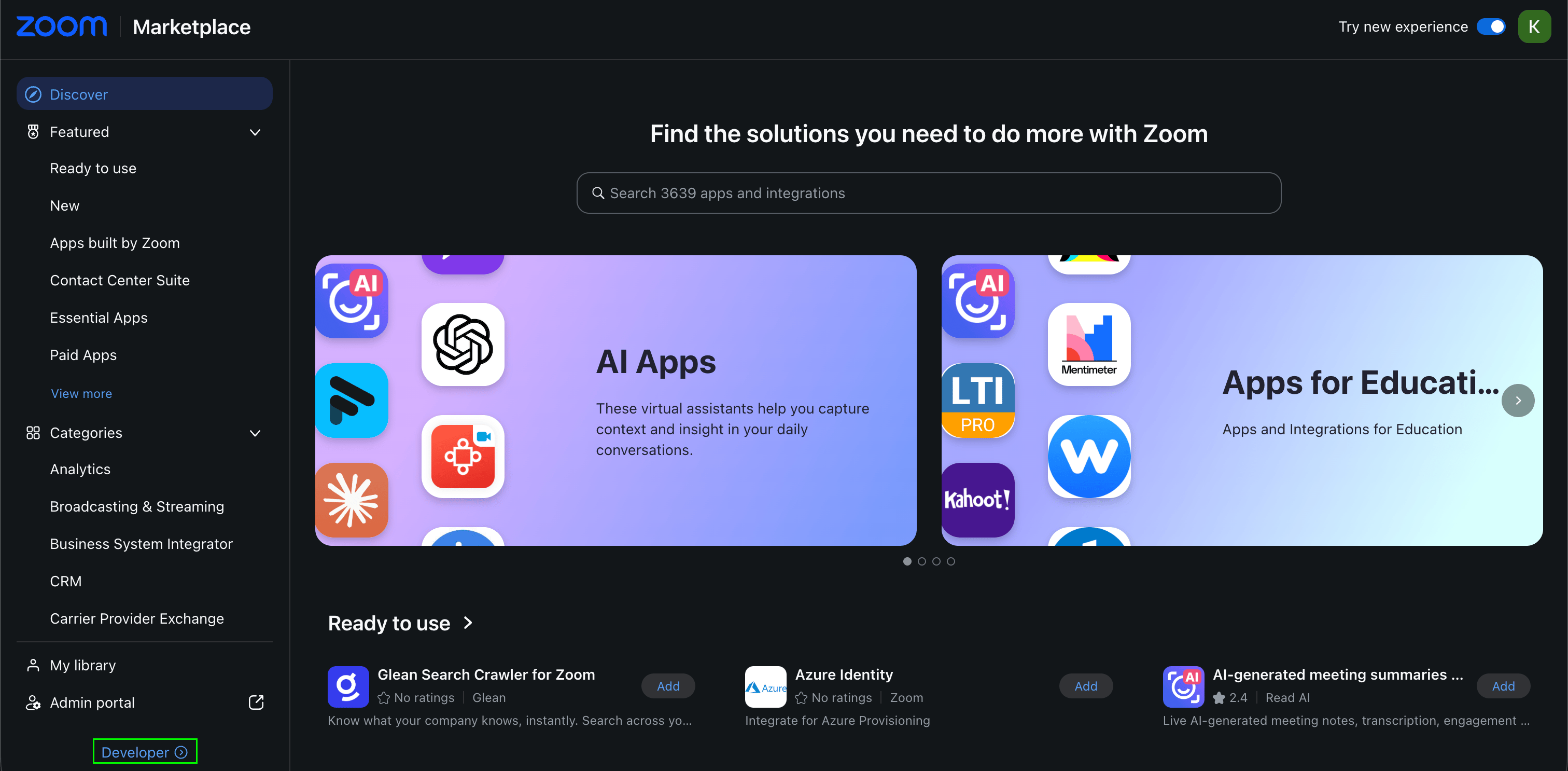
2. In the lower-left navigation pane, click **Developer**. This link only appears if your account has developer permissions — check with your admin if you don't see it.
 3. On the **Created apps** page, click **Develop** and select **Build an app**.
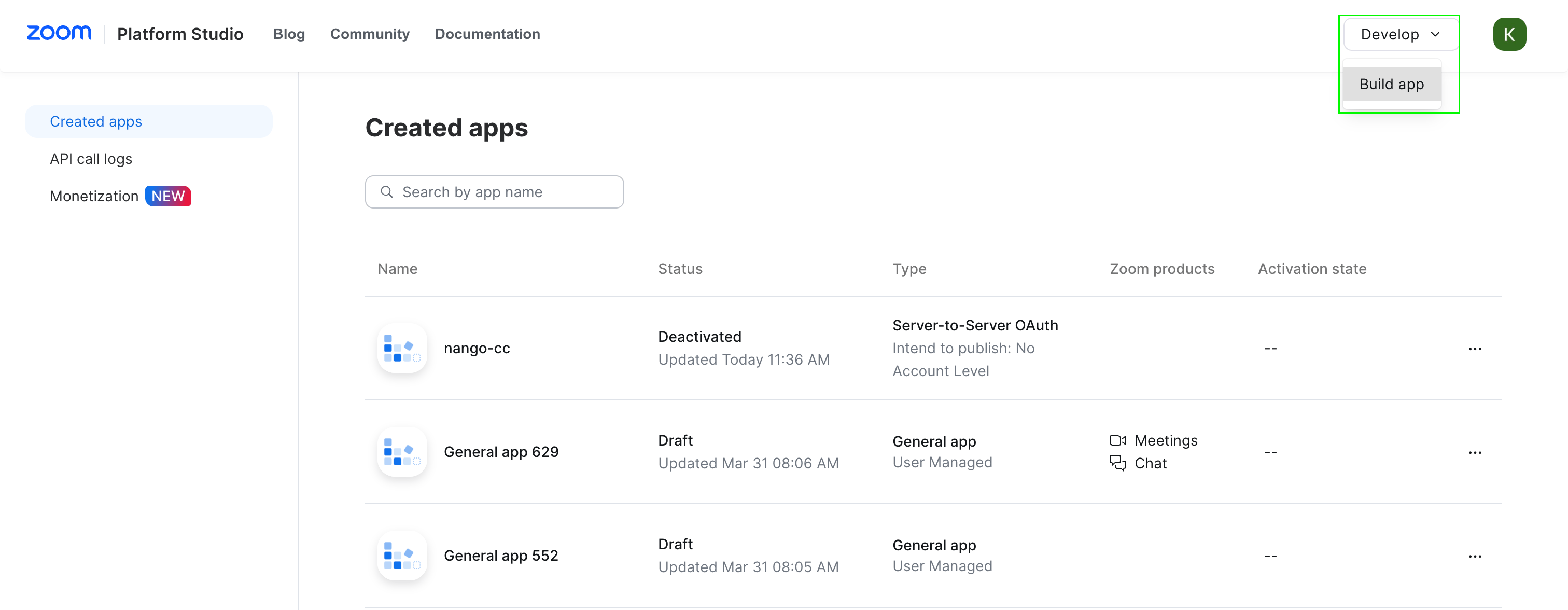 4. Select **Server-to-Server OAuth app**, enter a name and click **Create**.
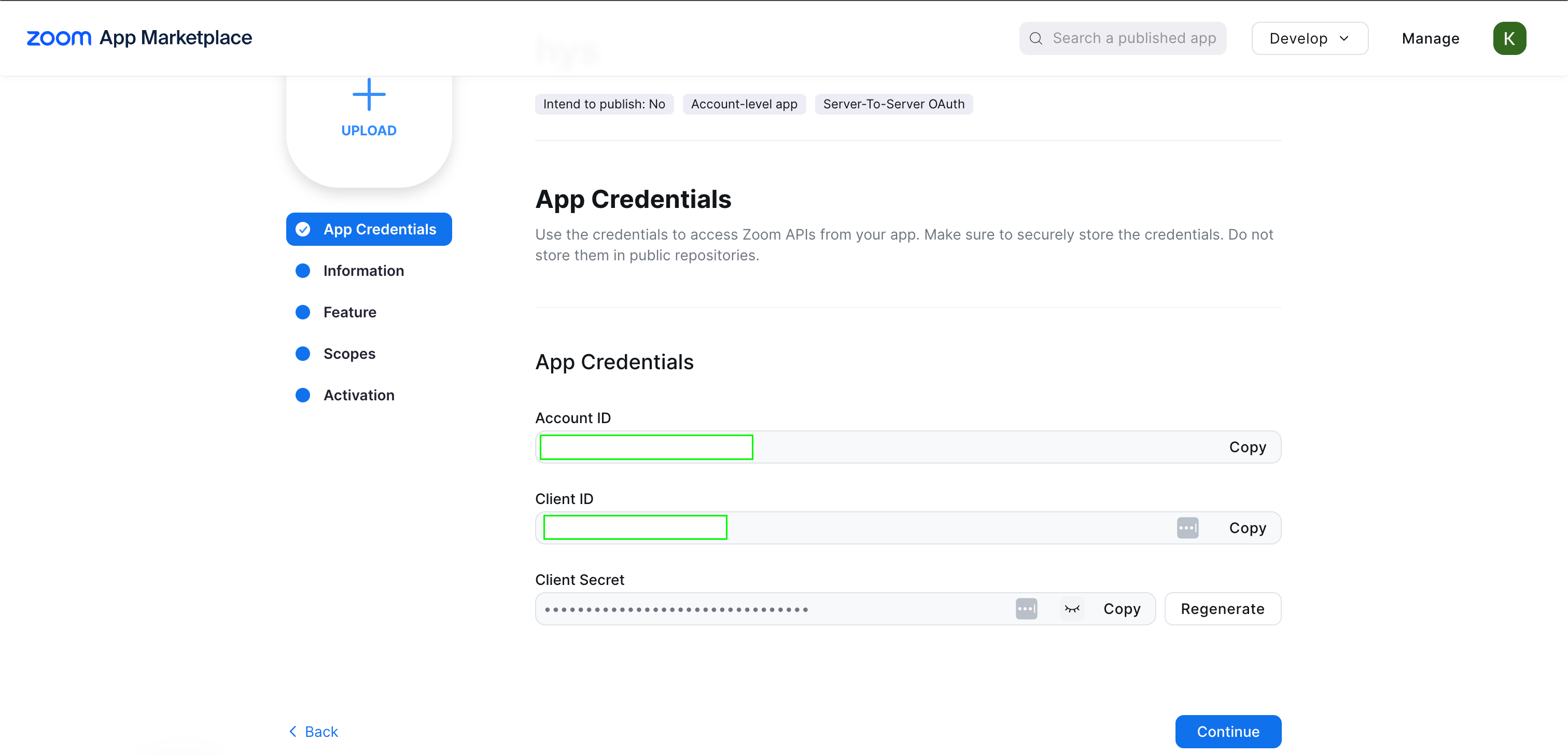
5. On the **App Credentials** section, note your **Account ID**, **Client ID**, and **Client Secret** — you'll enter all three in Nango.
4. Select **Server-to-Server OAuth app**, enter a name and click **Create**.
5. On the **App Credentials** section, note your **Account ID**, **Client ID**, and **Client Secret** — you'll enter all three in Nango.
 6. Under **Information**, add a description, company name, and developer contact name and email (required for activation).
7. Under **Scopes**, click **Add Scopes** and add the API scopes your integration needs.
8. Activate the app. You can't generate an access token until it's activated — if activation fails, resolve any errors shown before continuing.
#### Step 2: Enter credentials in the Connect UI
1. Open the form where you need to authenticate with Zoom.
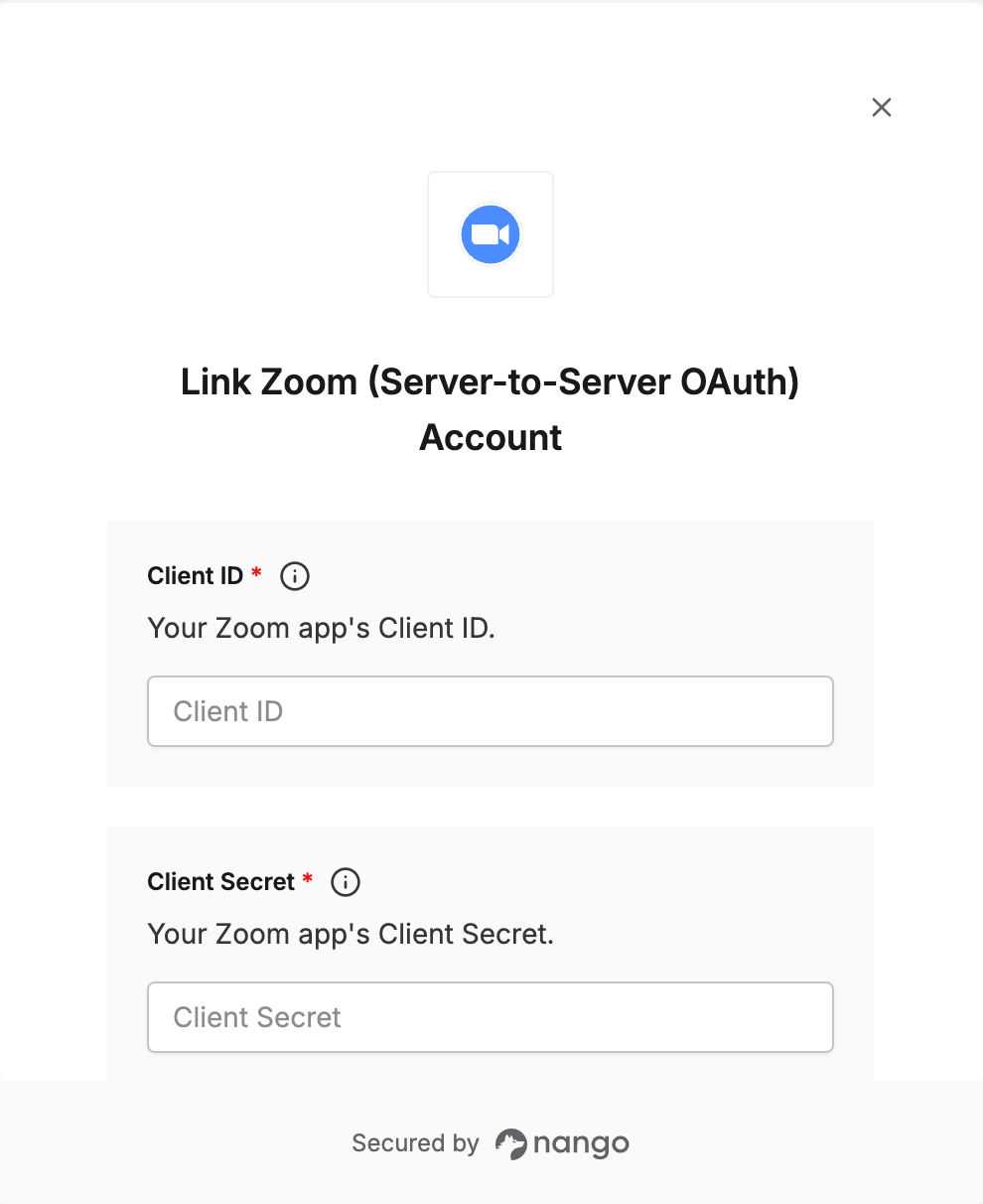
2. Enter your **Account ID**, **Client ID**, and **Client Secret** in their designated fields.
3. Submit the form, and you should be successfully authenticated.
6. Under **Information**, add a description, company name, and developer contact name and email (required for activation).
7. Under **Scopes**, click **Add Scopes** and add the API scopes your integration needs.
8. Activate the app. You can't generate an access token until it's activated — if activation fails, resolve any errors shown before continuing.
#### Step 2: Enter credentials in the Connect UI
1. Open the form where you need to authenticate with Zoom.
2. Enter your **Account ID**, **Client ID**, and **Client Secret** in their designated fields.
3. Submit the form, and you should be successfully authenticated.
 You are now connected to Zoom.