> ## Documentation Index
> Fetch the complete documentation index at: https://nango-wari-integration-config-credentials-api.mintlify.site/llms.txt
> Use this file to discover all available pages before exploring further.
# Code Climate - How do I link my account?
## Overview
To authenticate with CodeClimate, you will need:
1. **API Key** - A key that grants Nango permission to interact with CodeClimate's API resources and services.
2. **Domain URL** - The API endpoint for your CodeClimate instance.
This guide will walk you through generating the API Key and obtaining the Domain URL.
## Prerequisites:
* You should have a registered account with CodeClimate. Create one on [CodeClimate's website](https://codeclimate.com/).
* Permission to generate an **API Key**.
## Step 1: Obtaining the Domain URL
* If you are using the **cloud version**, your domain URL is:
```
api.codeclimate.com
```
* If you are using the **on-premise version**, your domain URL follows this format:
```
{host-name}/api
```
## Step 2: Creating an API Key
1. From your Code Climate dashboard, hover over your **profile icon** in the top right corner. Click on **User Settings**.
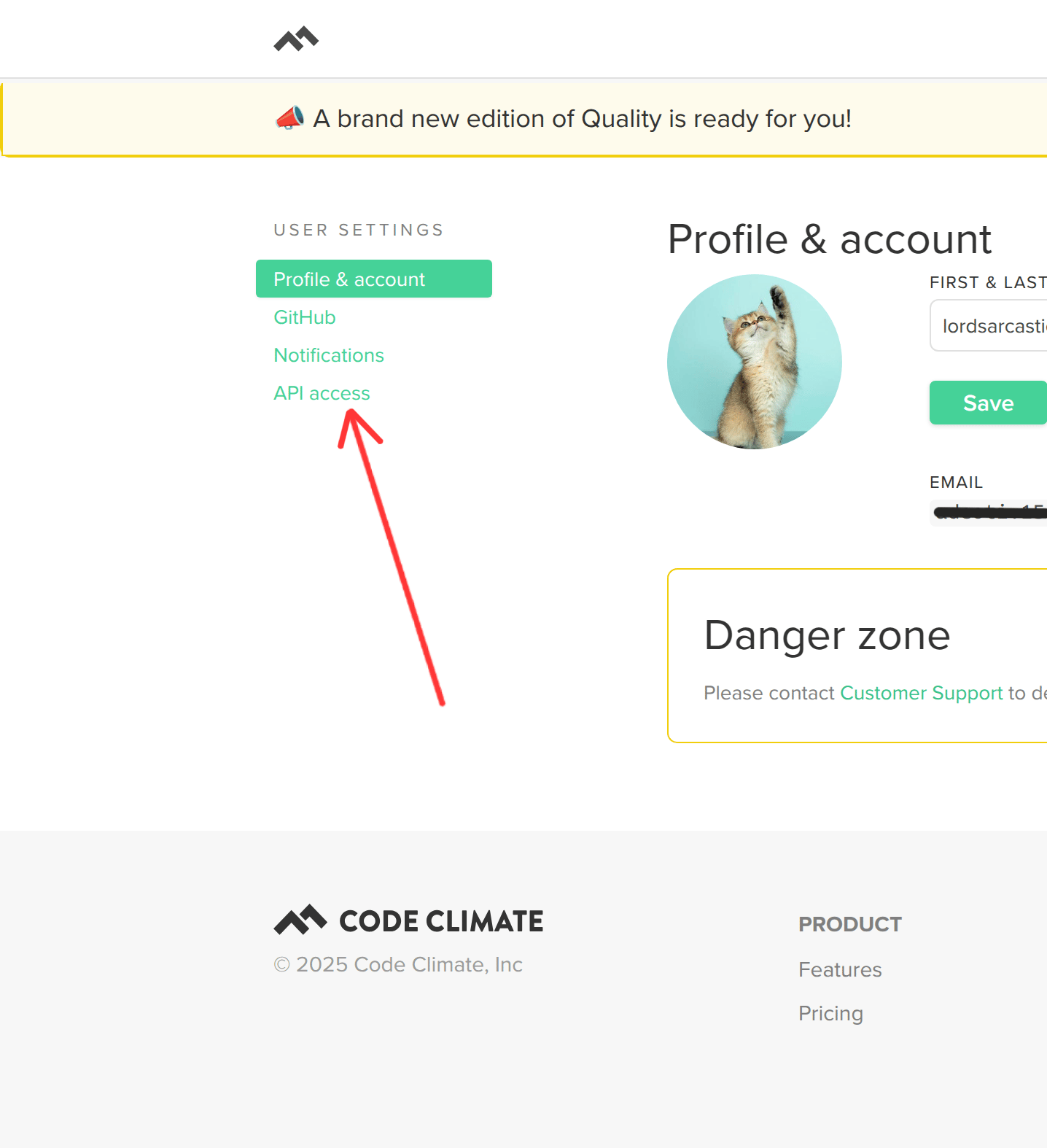
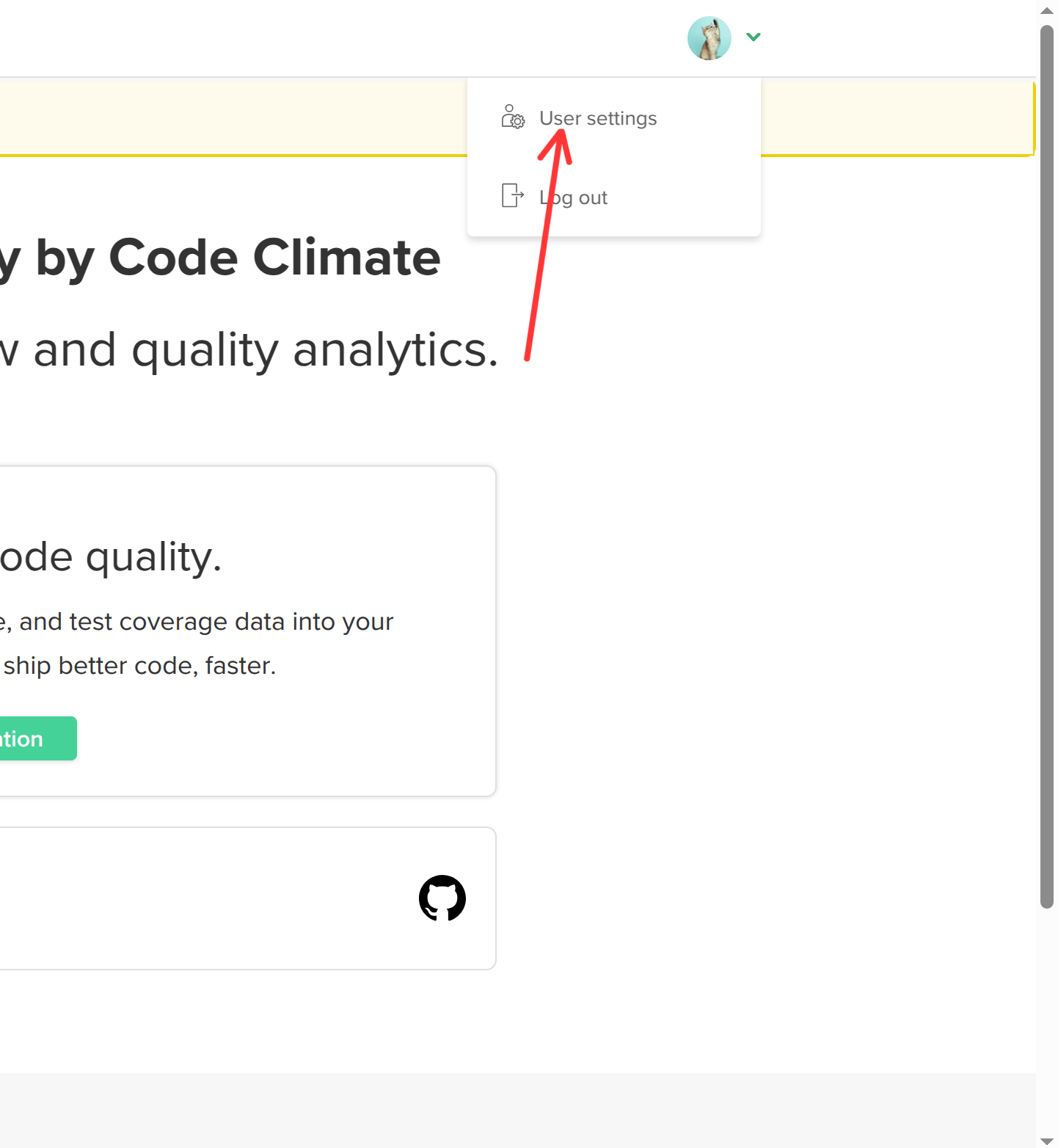 4. In the right sidebar menu, select **API Access**.
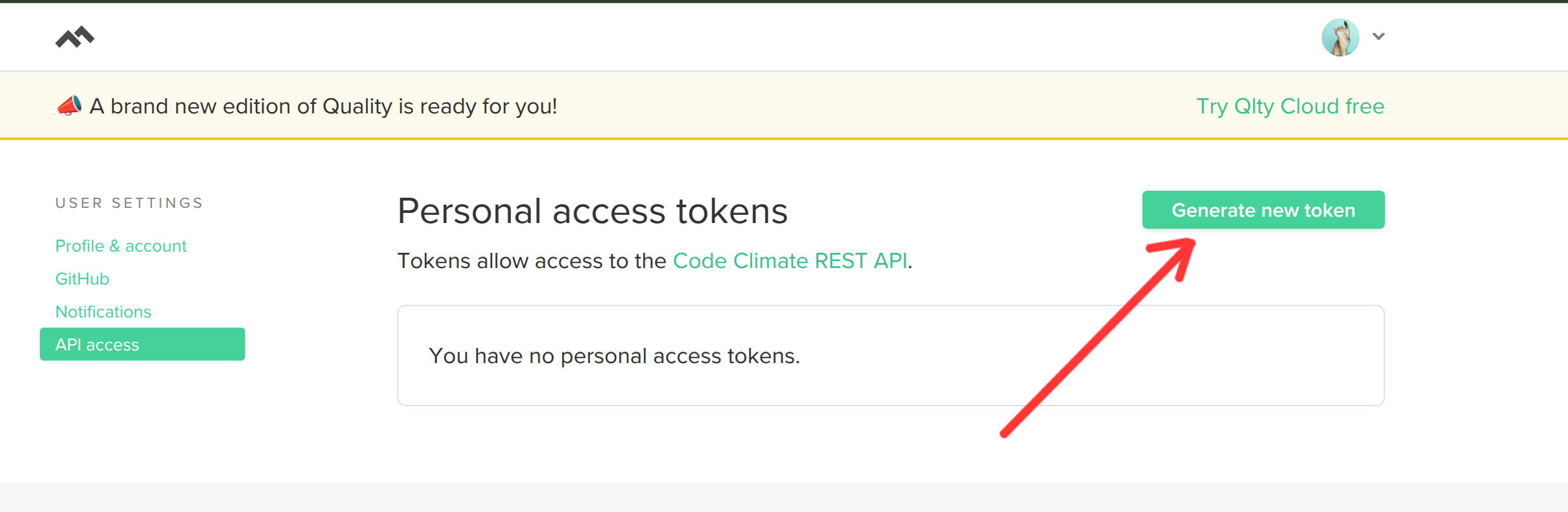
 5. Click on **Generate new token** in the top right corner.
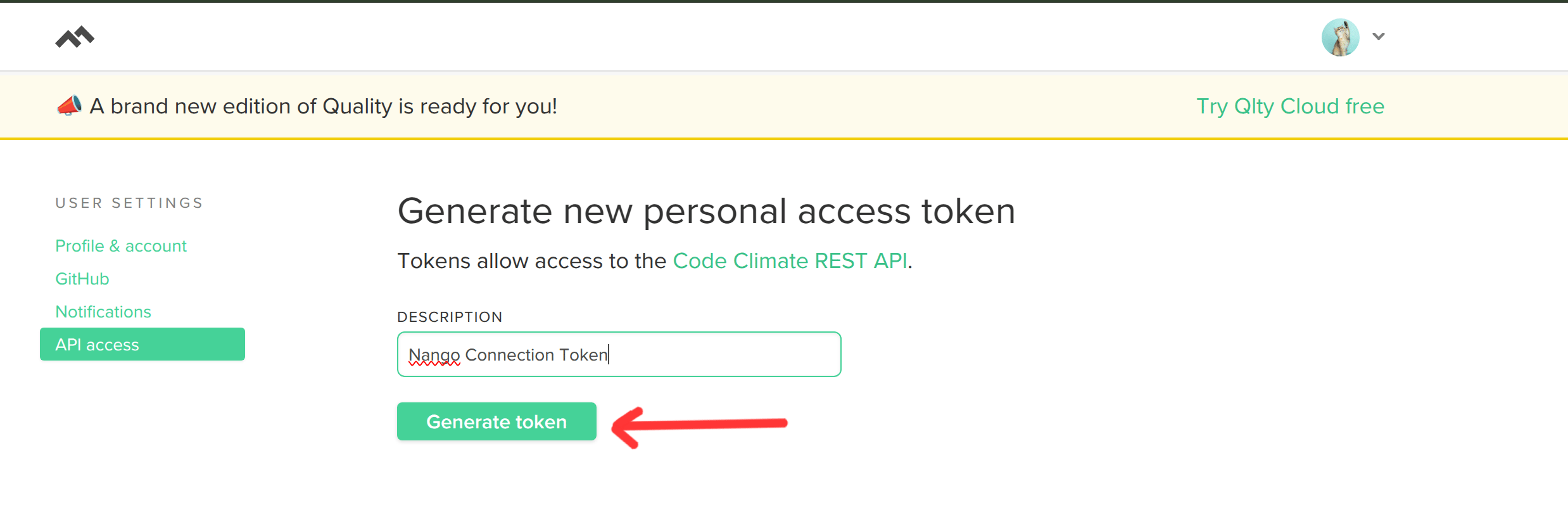
 6. Enter a relevant **description** for the token and then click **Generate token** to create the API Key.
 8. The generated token will be displayed on the screen. **Copy and store it securely**, as it will not be visible again after you leave the page.
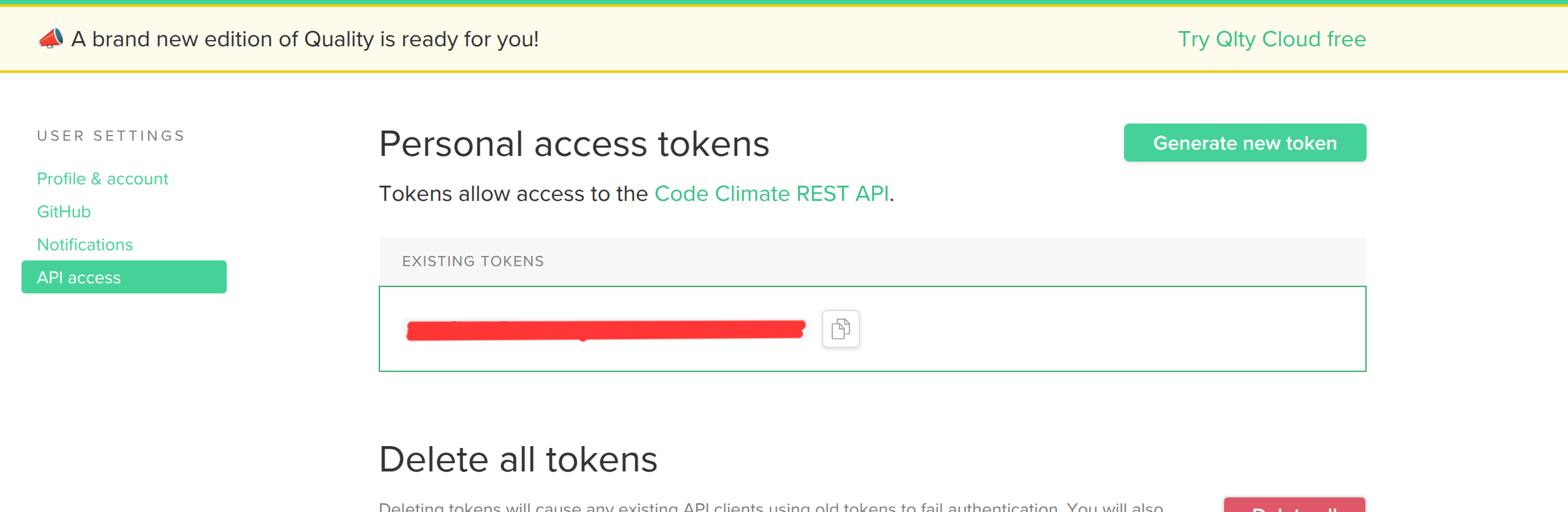 **Note:** Ensure you store this key securely, as it will not be visible again after leaving the API Key page.
## Step 3: Connect Your CodeClimate Account
To authenticate using your API credentials, navigate to the CodeClimate authentication form in Nango.
Enter your credentials as follows:
* **API Key**: Paste your API Key from CodeClimate.
* **Domain URL**: Enter the appropriate domain URL (`api.codeclimate.com` for cloud users or `{host-name}/api` for on-premise users).
**Note:** Ensure you store this key securely, as it will not be visible again after leaving the API Key page.
## Step 3: Connect Your CodeClimate Account
To authenticate using your API credentials, navigate to the CodeClimate authentication form in Nango.
Enter your credentials as follows:
* **API Key**: Paste your API Key from CodeClimate.
* **Domain URL**: Enter the appropriate domain URL (`api.codeclimate.com` for cloud users or `{host-name}/api` for on-premise users).
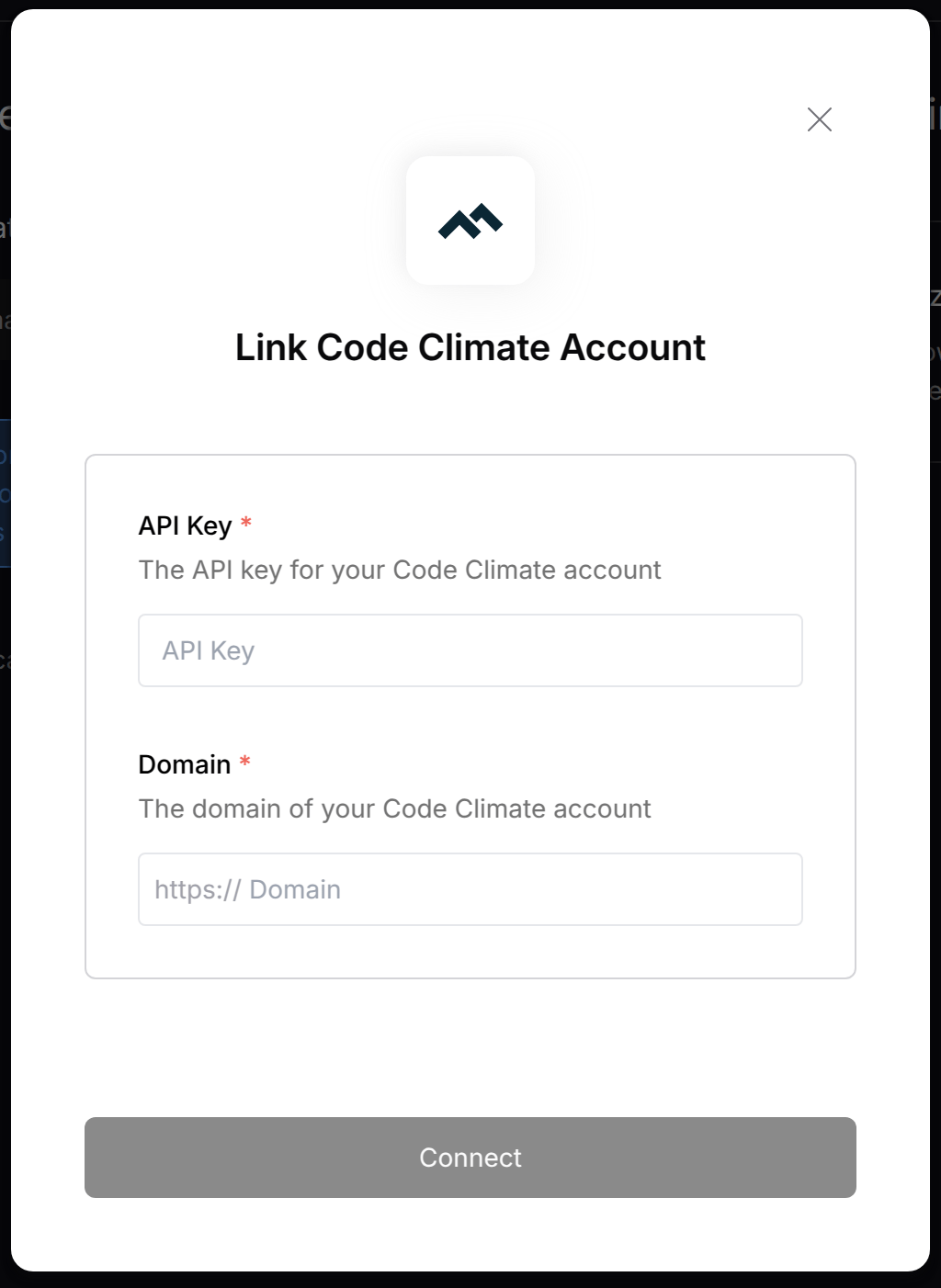 Click **Connect** to complete the authentication.
**Note:** Ensure that you enter the credentials exactly as generated to avoid authentication errors.
```
```
Click **Connect** to complete the authentication.
**Note:** Ensure that you enter the credentials exactly as generated to avoid authentication errors.
```
```